> ## Documentation Index
> Fetch the complete documentation index at: https://docs.withlope.com/llms.txt
> Use this file to discover all available pages before exploring further.
# Search candidates by job
> Turn any job and its description into a ready-to-run AI Scout search in one click.
Already have a job written up? Let it do the searching for you. In AI Scout you can switch from writing a prompt to **searching based on a job** — pick one of your open roles and Lope turns its title and description into a complete, ranked search. No prompt to write from scratch.
## Why use it
Most roles you recruit for are already described in detail: a title, responsibilities, must-have skills, location, seniority. Searching by job reuses that description instead of asking you to retype it. Lope reads the role, drafts the search for you, and lets you fine-tune before you run it.
It's also a quality-of-life shortcut for everyday sourcing. You already have the job in Lope — including roles you [import from LinkedIn](/jobs) — so you can go from posting to ranked candidates without rebuilding the same criteria by hand. Import the job, switch to **Search based on job**, run the search, and start filling the role with strong matches right away.
The better your job description, the sharper the search. A clear title plus a few lines on skills, seniority, and location gives Lope the most to work with.
## Run a search from a job
At the top of AI Scout, toggle from **Search by prompt** to **Search based on job**.
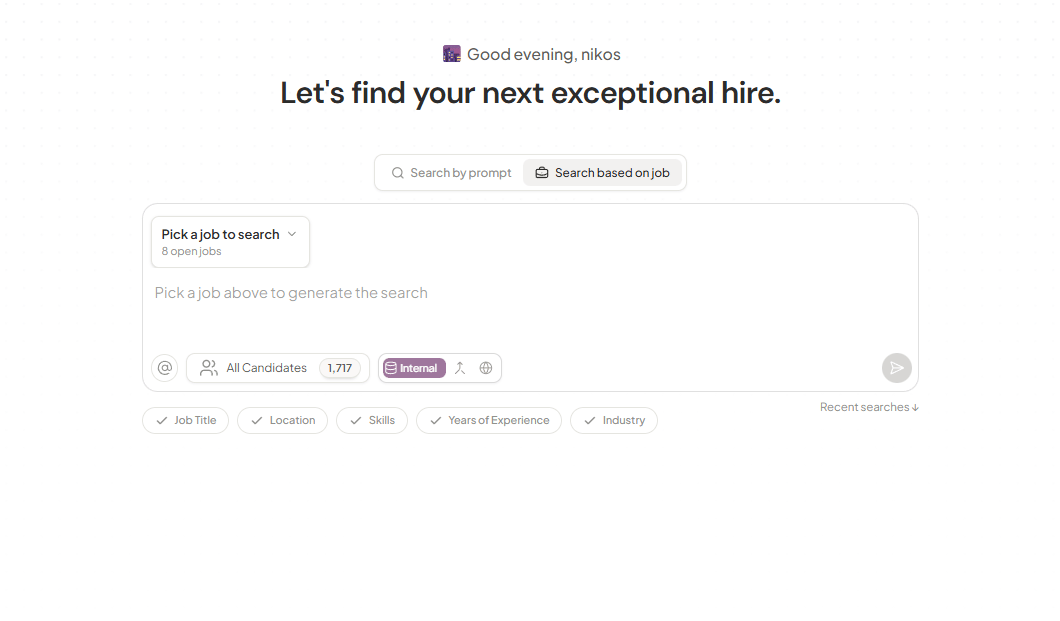 Open **Pick a job to search** and choose one of your open roles. Lope reads that job's title and description and generates the search automatically.
Lope writes a plain-language prompt describing the ideal candidate and lights up the criteria it found — **Job Title**, **Location**, **Skills**, **Years of Experience**, and **Industry**. When pay is mentioned in the job description, Lope surfaces that salary band. It also runs a **salary range estimation** to suggest market-value benchmarks for the role.
**Salary range estimation** goes beyond what the job posting states. Lope can estimate a market-value salary band for the role — useful when the description is vague or leaves pay out entirely. This feature is still being refined, so treat the estimate as a starting point rather than a final number.
Open **Pick a job to search** and choose one of your open roles. Lope reads that job's title and description and generates the search automatically.
Lope writes a plain-language prompt describing the ideal candidate and lights up the criteria it found — **Job Title**, **Location**, **Skills**, **Years of Experience**, and **Industry**. When pay is mentioned in the job description, Lope surfaces that salary band. It also runs a **salary range estimation** to suggest market-value benchmarks for the role.
**Salary range estimation** goes beyond what the job posting states. Lope can estimate a market-value salary band for the role — useful when the description is vague or leaves pay out entirely. This feature is still being refined, so treat the estimate as a starting point rather than a final number.
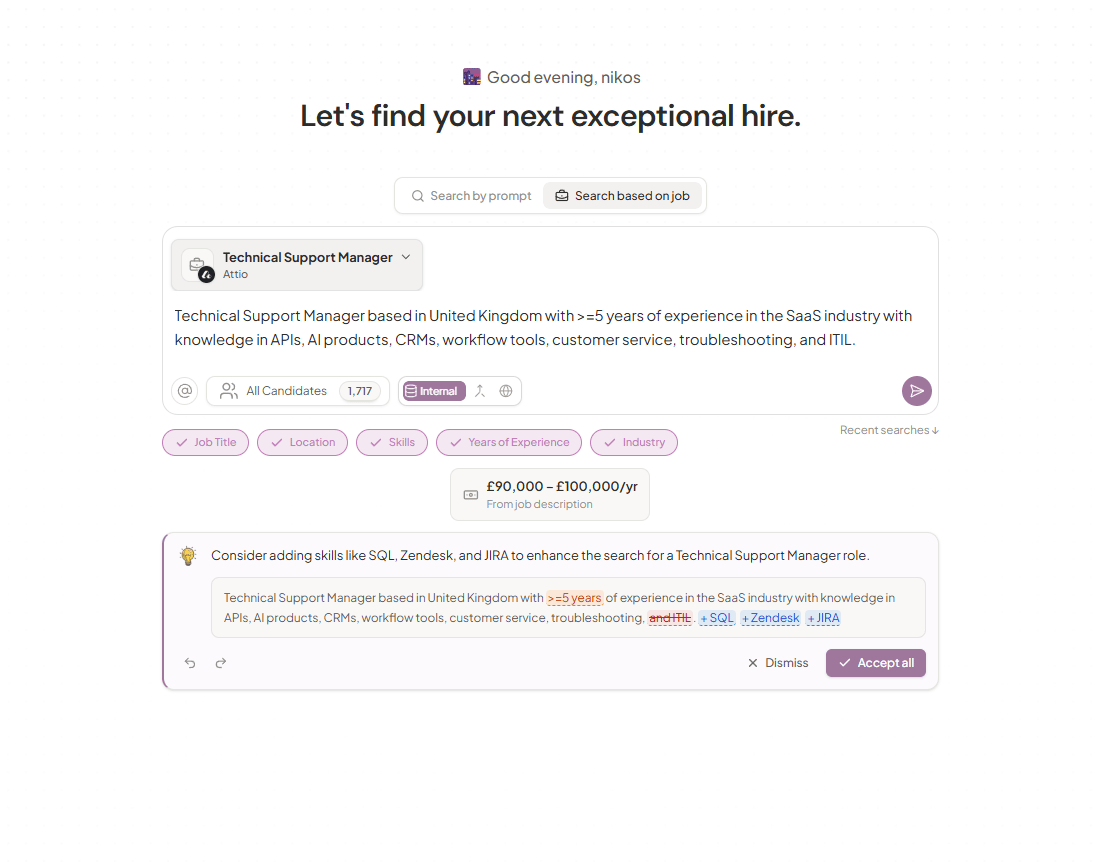 Lope may suggest ways to sharpen the search — for example, adding relevant skills for the role. Choose **Accept all** to apply them, or **Dismiss** to keep your version. You can edit the prompt directly at any time.
Pick your source — **Internal** (your own database), **Mixed**, or **External** — then run the search. This only changes *where* Lope looks, not what it searches for. Lope takes you straight to the ranked results.
A job needs a **title** and a **description** before Lope can generate a search from it. If a job won't generate, open it, add a few lines describing the role, and try again.
## Fine-tune before you run
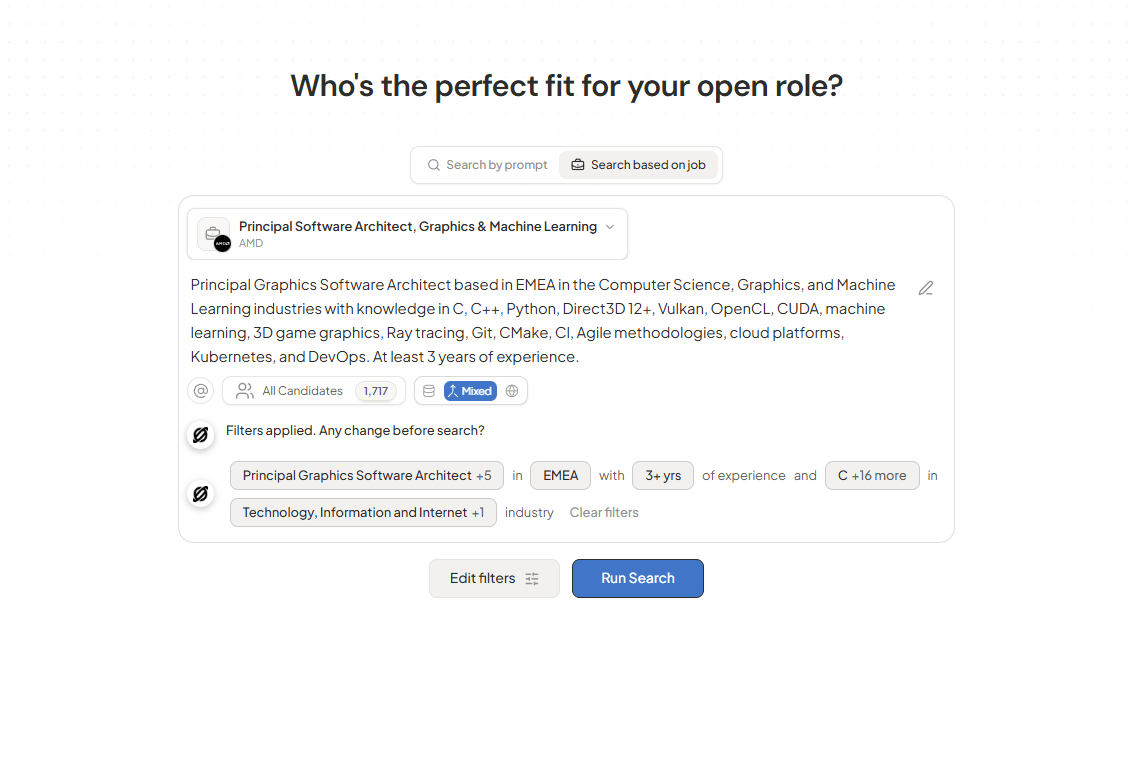
Want more control? Once Lope drafts the search, adjust it before you hit **Run Search**:
* **Edit the prompt** — Click the pencil icon on the generated text and rewrite it directly.
* **Review applied filters** — Lope shows what it pulled from the job as tags (job title, experience, skills, and more).
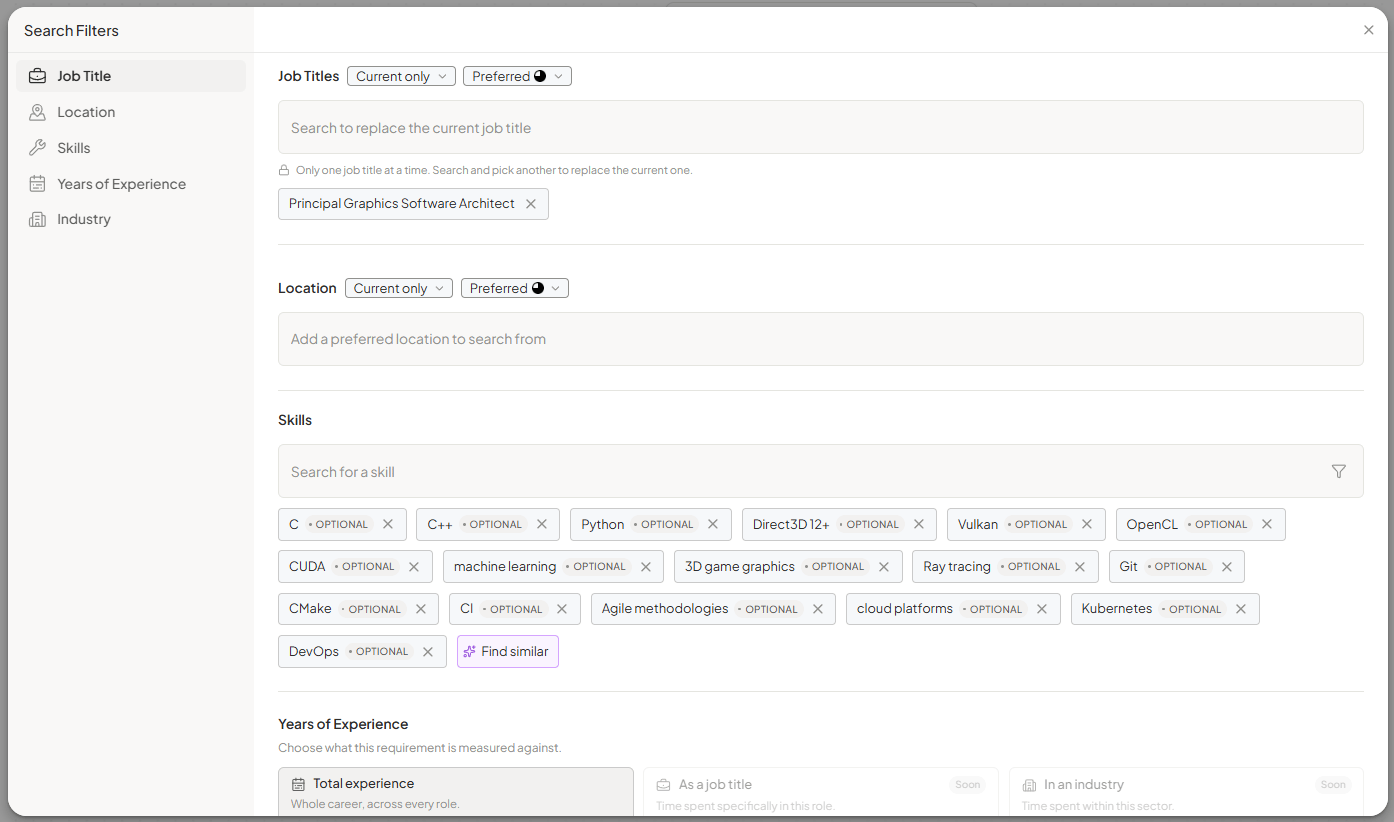
* **Open Edit filters** — Click **Edit filters** to open the **Search Filters** modal. Pick and choose across **Job Title**, **Location**, **Skills**, **Years of Experience**, and **Industry**: swap the title, add or remove skills, set locations, and adjust the minimum years of experience. You can also mark skills as optional or use **Find similar** to expand the list.
Everything you change applies to this search only — your saved job stays as it is.
Lope may suggest ways to sharpen the search — for example, adding relevant skills for the role. Choose **Accept all** to apply them, or **Dismiss** to keep your version. You can edit the prompt directly at any time.
Pick your source — **Internal** (your own database), **Mixed**, or **External** — then run the search. This only changes *where* Lope looks, not what it searches for. Lope takes you straight to the ranked results.
A job needs a **title** and a **description** before Lope can generate a search from it. If a job won't generate, open it, add a few lines describing the role, and try again.
## Fine-tune before you run
Want more control? Once Lope drafts the search, adjust it before you hit **Run Search**:
* **Edit the prompt** — Click the pencil icon on the generated text and rewrite it directly.
* **Review applied filters** — Lope shows what it pulled from the job as tags (job title, experience, skills, and more).
* **Open Edit filters** — Click **Edit filters** to open the **Search Filters** modal. Pick and choose across **Job Title**, **Location**, **Skills**, **Years of Experience**, and **Industry**: swap the title, add or remove skills, set locations, and adjust the minimum years of experience. You can also mark skills as optional or use **Find similar** to expand the list.
Everything you change applies to this search only — your saved job stays as it is.
 You can also launch this search straight from a job: open the job and click **Find candidates** to jump into the same generated search.
## What you get back
Running the search lands you in AI Scout with a ranked list of candidates. Each one gets a relevance score and a plain-language explanation of why they matched, criterion by criterion. To learn how the scoring and colors work, see [Understanding match scores](/understanding-match-scores-and-explainability).
## Troubleshooting
Lope needs something to work from. Make sure the job has a **title** and a **description**. Open the job, add a few lines about the role, and try again.
Edit it before running. Rewrite the prompt directly, click **Edit filters** to adjust job title, location, skills, experience, or industry, or choose **Accept all** if Lope offers suggestions. A richer job description also produces a stronger draft.
Switch the source from **Internal** to **Mixed** or **External** to widen the search beyond your own database, then run it again. If it still looks off, contact support with the job link.
* In AI Scout, switch to **Search based on job**
* Pick a job and review the auto-generated prompt and criteria
* Accept any suggestions, or fine-tune in **Edit filters**
* Choose Internal, Mixed, or External, then run
You can also launch this search straight from a job: open the job and click **Find candidates** to jump into the same generated search.
## What you get back
Running the search lands you in AI Scout with a ranked list of candidates. Each one gets a relevance score and a plain-language explanation of why they matched, criterion by criterion. To learn how the scoring and colors work, see [Understanding match scores](/understanding-match-scores-and-explainability).
## Troubleshooting
Lope needs something to work from. Make sure the job has a **title** and a **description**. Open the job, add a few lines about the role, and try again.
Edit it before running. Rewrite the prompt directly, click **Edit filters** to adjust job title, location, skills, experience, or industry, or choose **Accept all** if Lope offers suggestions. A richer job description also produces a stronger draft.
Switch the source from **Internal** to **Mixed** or **External** to widen the search beyond your own database, then run it again. If it still looks off, contact support with the job link.
* In AI Scout, switch to **Search based on job**
* Pick a job and review the auto-generated prompt and criteria
* Accept any suggestions, or fine-tune in **Edit filters**
* Choose Internal, Mixed, or External, then run