> ## Documentation Index
> Fetch the complete documentation index at: https://docs.withlope.com/llms.txt
> Use this file to discover all available pages before exploring further.
# Teamspaces
> Teamspaces are collaboration containers that organize your clients and jobs within a workspace.
A **teamspace** is a collaboration container within your workspace. Use teamspaces to group related clients and jobs. For example, by department, business unit, or client portfolio.
## How teamspaces work
Teamspaces sit between your workspace and your clients. They help you:
* **Organize** clients and jobs into logical groups
* **Control access** with public or private permissions
* **Collaborate** by inviting team members to specific teamspaces
### **🚀** Getting Started Teamspace
Each **workspace admin** (workspace admin is any person whom signs-up and creates a workspace or just a non-invited user), has by default an initial teamspace which is called "*Getting Started Teamspace*". Later on, he can create as much teamspaces he wants.
### Creating a teamspace
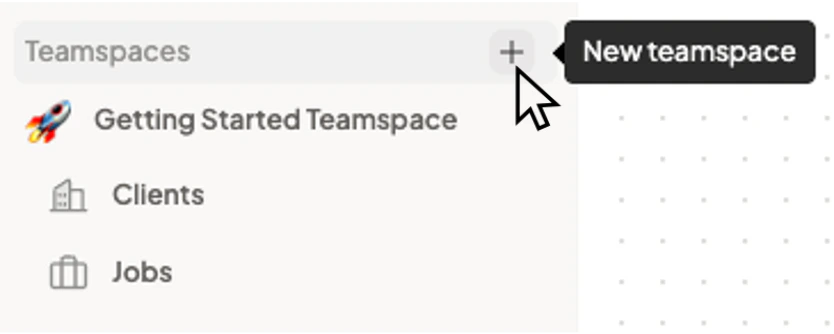 1. Click the **+** button next to "**Teamspaces**" in the sidebar.
2. Enter a name (e.g., "Engineering hires", "Q1 Clients").
3. Optionally add a description and emoji.
4. Choose **Public** or **Private**:
* **Public**: All workspace members can see and join. New workspace members are auto-invited.
* **Private**: Only invited members can access.
### Teamspace permissions
| Permission | Who can access |
| ----------- | ------------------------------------------------- |
| **Public** | All workspace members; new members are auto-added |
| **Private** | Only members explicitly invited by the creator |
### What lives in a teamspace
* **Clients** — Companies or hiring entities you're recruiting for.
* **Jobs** — Open positions under those clients.
You can have multiple clients per teamspace, and multiple jobs per client.
## Membership
* **Owner** — The user who created the teamspace.
* **Members** — Users who joined (via invite for private, or auto-add for public).
Members can:
* **View** and **work** with clients and jobs in the teamspace.
* **Add** clients and jobs (if they have the right permissions).
* **Invite** other workspace members to the teamspace.
### Leaving a teamspace
Members can leave a teamspace at any time from the teamspace settings. They'll lose access to all clients, jobs and candidates in that teamspace.
## Where teamspaces appear
Teamspaces are visible in the sidebar. Expand a teamspace to see its clients; expand a client to see its jobs. This hierarchy makes it easy to navigate your recruitment pipeline.
## Next steps
* [Clients](/clients) — Create and manage clients within a teamspace.
* [Jobs](/jobs) — Add job positions under clients.
1. Click the **+** button next to "**Teamspaces**" in the sidebar.
2. Enter a name (e.g., "Engineering hires", "Q1 Clients").
3. Optionally add a description and emoji.
4. Choose **Public** or **Private**:
* **Public**: All workspace members can see and join. New workspace members are auto-invited.
* **Private**: Only invited members can access.
### Teamspace permissions
| Permission | Who can access |
| ----------- | ------------------------------------------------- |
| **Public** | All workspace members; new members are auto-added |
| **Private** | Only members explicitly invited by the creator |
### What lives in a teamspace
* **Clients** — Companies or hiring entities you're recruiting for.
* **Jobs** — Open positions under those clients.
You can have multiple clients per teamspace, and multiple jobs per client.
## Membership
* **Owner** — The user who created the teamspace.
* **Members** — Users who joined (via invite for private, or auto-add for public).
Members can:
* **View** and **work** with clients and jobs in the teamspace.
* **Add** clients and jobs (if they have the right permissions).
* **Invite** other workspace members to the teamspace.
### Leaving a teamspace
Members can leave a teamspace at any time from the teamspace settings. They'll lose access to all clients, jobs and candidates in that teamspace.
## Where teamspaces appear
Teamspaces are visible in the sidebar. Expand a teamspace to see its clients; expand a client to see its jobs. This hierarchy makes it easy to navigate your recruitment pipeline.
## Next steps
* [Clients](/clients) — Create and manage clients within a teamspace.
* [Jobs](/jobs) — Add job positions under clients.