> ## Documentation Index
> Fetch the complete documentation index at: https://docs.withlope.com/llms.txt
> Use this file to discover all available pages before exploring further.
# Workspaces
> Your workspace is the top-level container for your recruitment organization in Lope.
A **workspace** is the top-level container for your recruitment organization in Lope. Everything you do: teamspaces, clients, jobs, and candidates—lives within a workspace.
## How workspaces work
When you **sign up** for Lope, a workspace is automatically created for you. The default name is based on your profile (e.g., "Sarah's Workspace"). You can rename it at any time from the workspace settings.
### What a workspace contains
* **Team members** — People you invite to collaborate
* **Teamspaces** — Collaboration containers that organize your clients and jobs
### One workspace per organization
Each **user** belongs to one **workspace**. If you're a recruiting agency with multiple teams, or a freelance recruiter working with different clients, you organize everything inside that single workspace using teamspaces.
## Workspace membership
* **Admin** — The user who created the workspace (or the first user to complete signup) is the workspace admin.
* **Invited members** — You invite team members by email. When they accept, they join your workspace and gain access based on the teamspaces and clients they're added to.
### Inviting team members
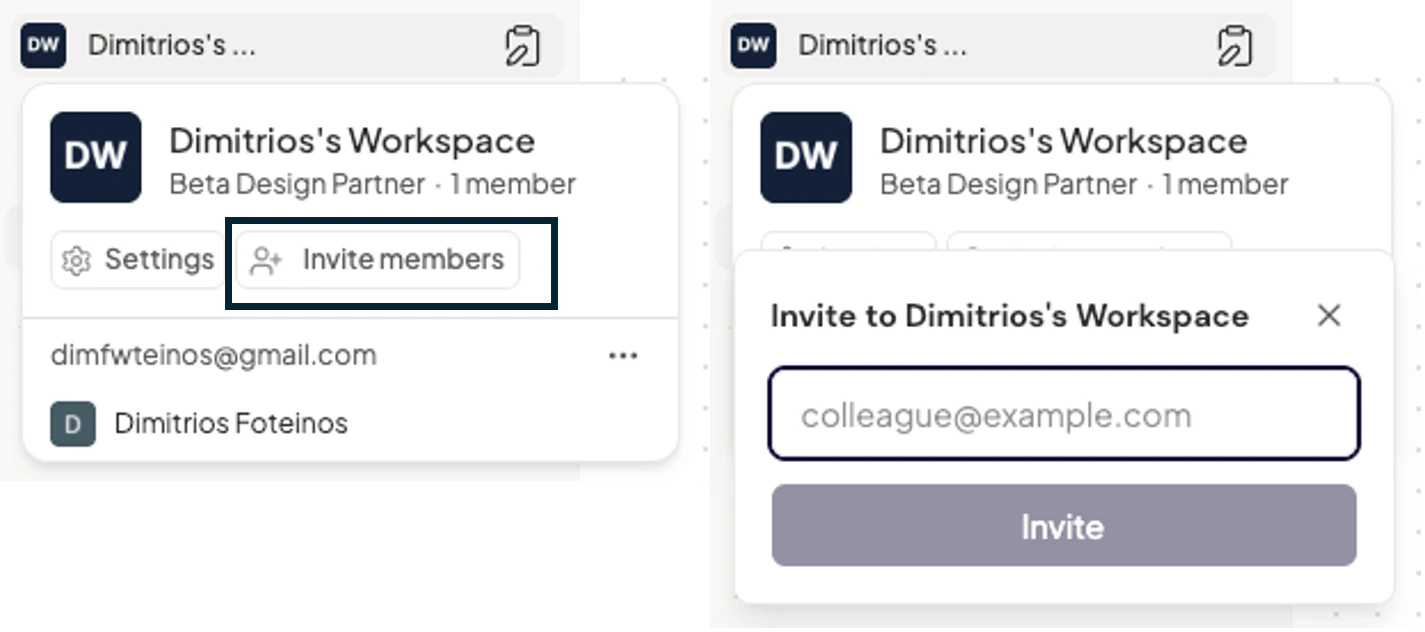 Use the workspace dropdown (top of the sidebar) to invite new members. They'll receive an email with a secure link. Once they accept, they're added to your workspace.
**Tip:** New members are automatically added to all **public** teamspaces in your workspace. Private teamspaces require an explicit invite.
**Tip:** New members are automatically added to all **public** teamspaces in your workspace. **Private** teaamspaces require an explicit invite from any of the members of that teamspace.
## Workspace settings
From the workspace dropdown, you can:
* **Rename** the workspace.
* **Change the workspace photo** (logo).
* **Invite team members.**
* **View or leave** the workspace (members can leave; creators can delete the workspace).
## Hierarchy overview
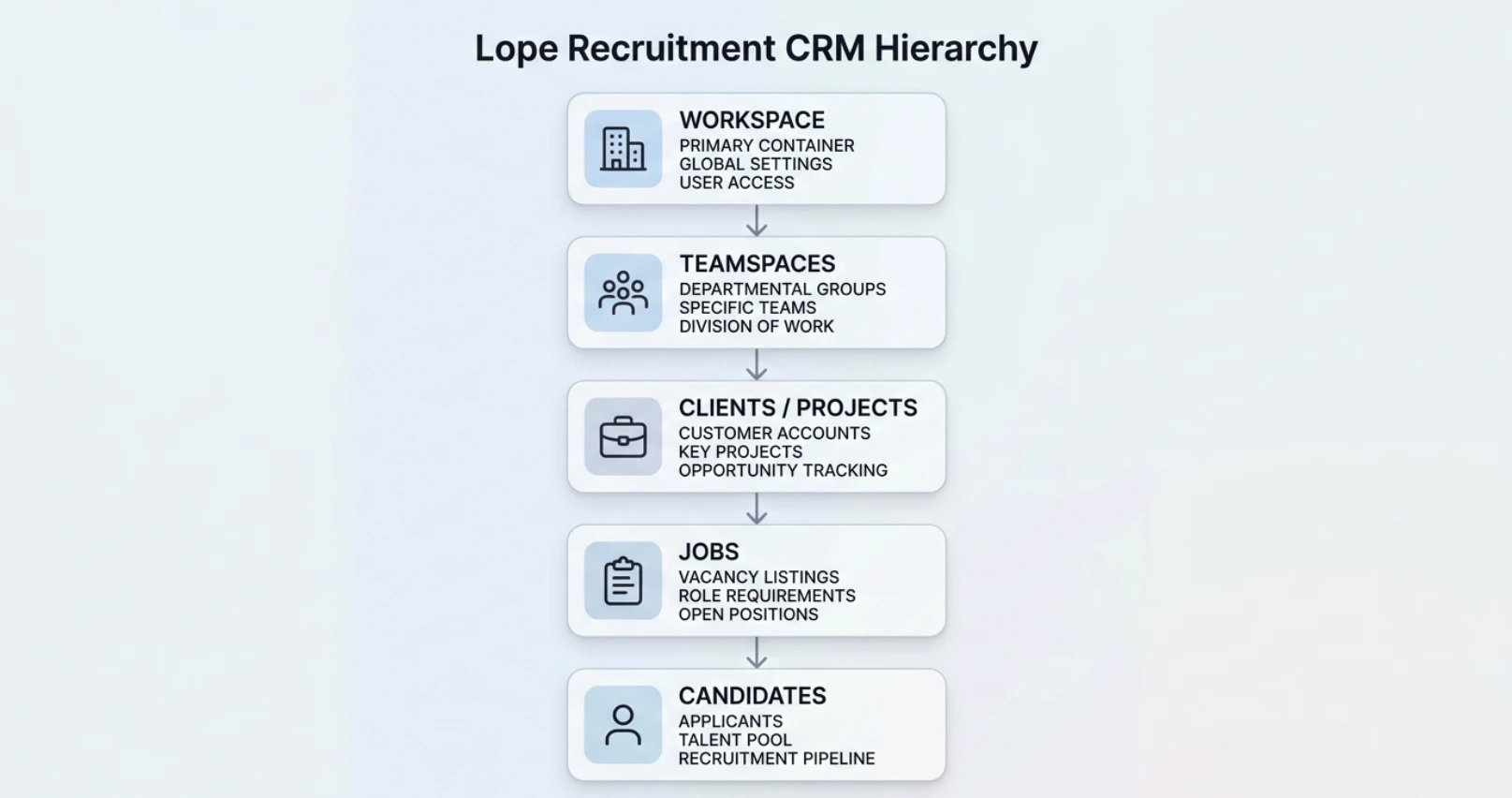
Your workspace sits at the top of Lope's structure:
```text theme={null}
Workspace
└── Teamspaces
└── Clients
└── Jobs (if any)
└── Candidates
```
Understanding this hierarchy helps you organize your recruitment workflow. See [Teamspaces](/teamspaces), [Clients](/clients), and [Jobs](/jobs) for details on each level.
Use the workspace dropdown (top of the sidebar) to invite new members. They'll receive an email with a secure link. Once they accept, they're added to your workspace.
**Tip:** New members are automatically added to all **public** teamspaces in your workspace. Private teamspaces require an explicit invite.
**Tip:** New members are automatically added to all **public** teamspaces in your workspace. **Private** teaamspaces require an explicit invite from any of the members of that teamspace.
## Workspace settings
From the workspace dropdown, you can:
* **Rename** the workspace.
* **Change the workspace photo** (logo).
* **Invite team members.**
* **View or leave** the workspace (members can leave; creators can delete the workspace).
## Hierarchy overview
Your workspace sits at the top of Lope's structure:
```text theme={null}
Workspace
└── Teamspaces
└── Clients
└── Jobs (if any)
└── Candidates
```
Understanding this hierarchy helps you organize your recruitment workflow. See [Teamspaces](/teamspaces), [Clients](/clients), and [Jobs](/jobs) for details on each level.
 **Multi Workspace** functionalities are not supported yet. If you have any inquire or custom capabilities support, please contact: **[support@withlope.com](mailto:support@withlope.com)**