

Why use it
Most roles you recruit for are already described in detail: a title, responsibilities, must-have skills, location, seniority. Searching by job reuses that description instead of asking you to retype it. Lope reads the role, drafts the search for you, and lets you fine-tune before you run it. It’s also a quality-of-life shortcut for everyday sourcing. You already have the job in Lope — including roles you import from LinkedIn — so you can go from posting to ranked candidates without rebuilding the same criteria by hand. Import the job, switch to Search based on job, run the search, and start filling the role with strong matches right away.Run a search from a job
1
Open AI Scout and switch to Search based on job
At the top of AI Scout, toggle from Search by prompt to Search based on job.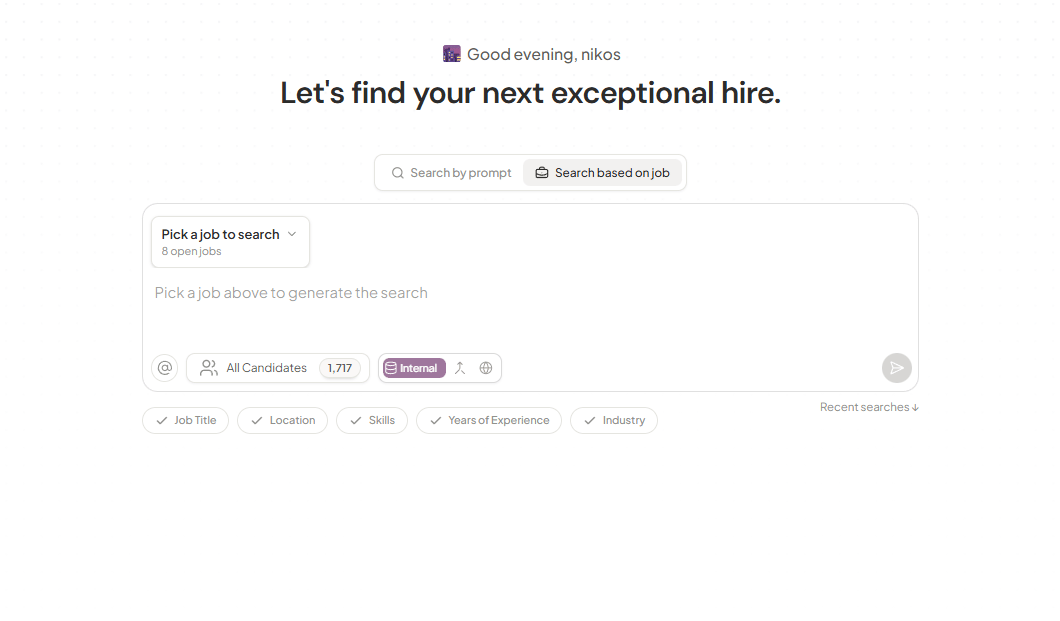
2
Pick a job
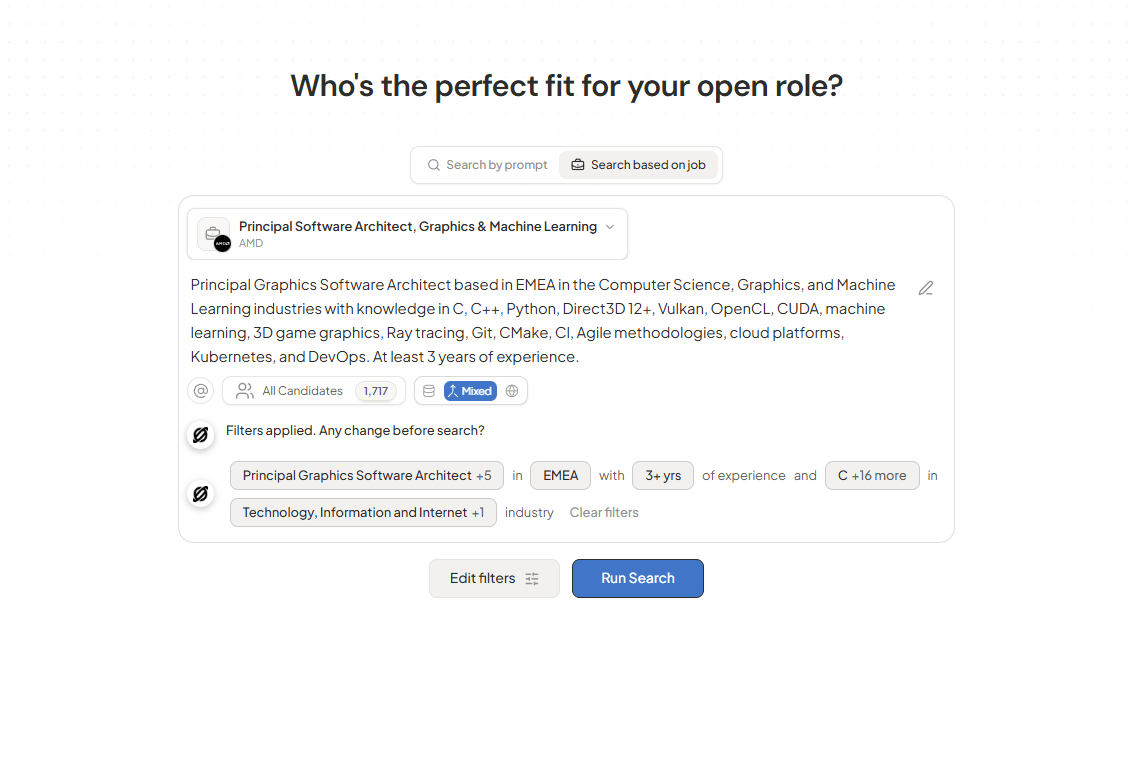
Open Pick a job to search and choose one of your open roles. Lope reads that job’s title and description and generates the search automatically.
3
Review the generated search
Lope writes a plain-language prompt describing the ideal candidate and lights up the criteria it found — Job Title, Location, Skills, Years of Experience, and Industry. When pay is mentioned in the job description, Lope surfaces that salary band. It also runs a salary range estimation to suggest market-value benchmarks for the role.
Salary range estimation goes beyond what the job posting states. Lope can estimate a market-value salary band for the role — useful when the description is vague or leaves pay out entirely. This feature is still being refined, so treat the estimate as a starting point rather than a final number.
4
Take any suggestions (optional)
Lope may suggest ways to sharpen the search — for example, adding relevant skills for the role. Choose Accept all to apply them, or Dismiss to keep your version. You can edit the prompt directly at any time.
5
Choose where to search and run
Pick your source — Internal (your own database), Mixed, or External — then run the search. This only changes where Lope looks, not what it searches for. Lope takes you straight to the ranked results.
A job needs a title and a description before Lope can generate a search from it. If a job won’t generate, open it, add a few lines describing the role, and try again.
Fine-tune before you run
Want more control? Once Lope drafts the search, adjust it before you hit Run Search:- Edit the prompt — Click the pencil icon on the generated text and rewrite it directly.
- Review applied filters — Lope shows what it pulled from the job as tags (job title, experience, skills, and more).
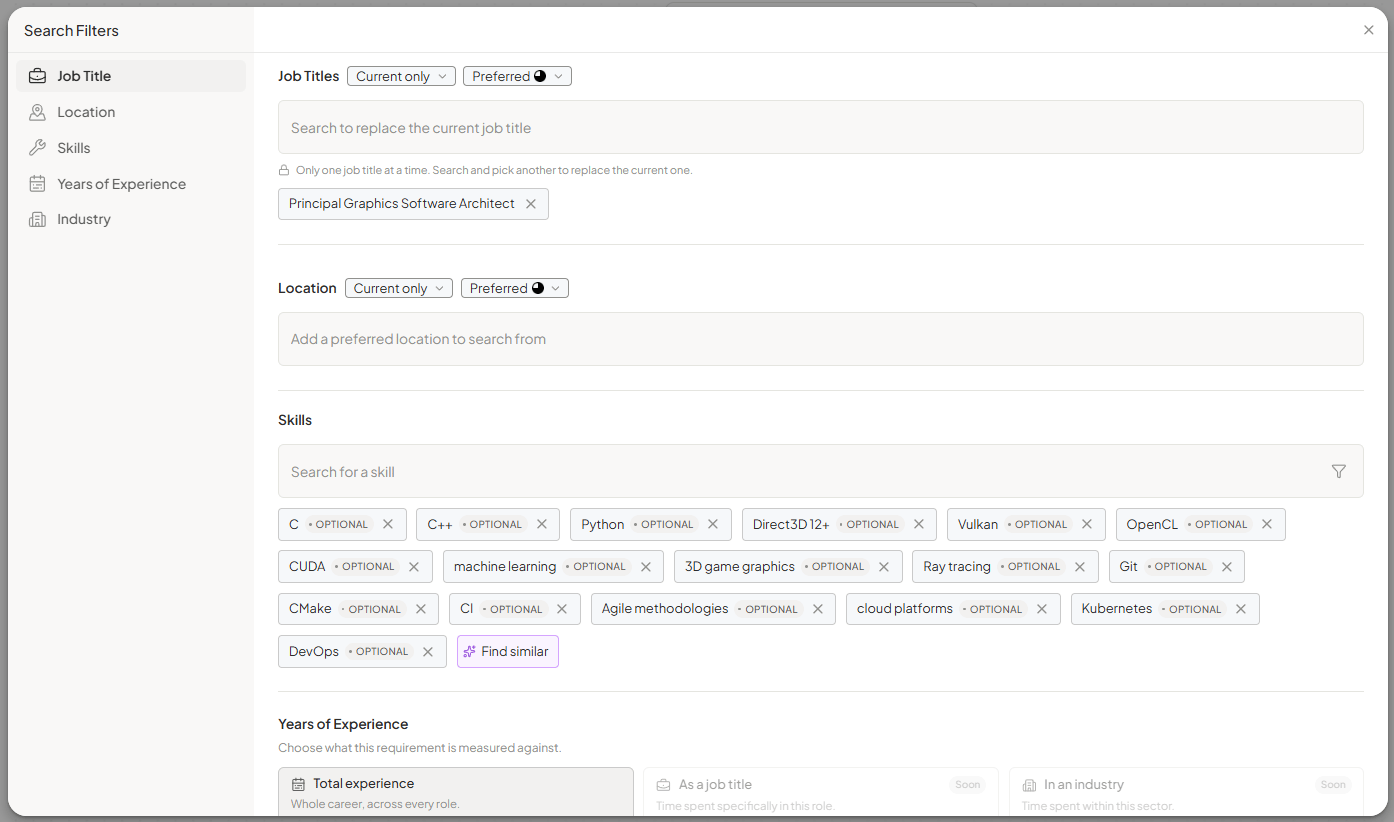
- Open Edit filters — Click Edit filters to open the Search Filters modal. Pick and choose across Job Title, Location, Skills, Years of Experience, and Industry: swap the title, add or remove skills, set locations, and adjust the minimum years of experience. You can also mark skills as optional or use Find similar to expand the list.
What you get back
Running the search lands you in AI Scout with a ranked list of candidates. Each one gets a relevance score and a plain-language explanation of why they matched, criterion by criterion. To learn how the scoring and colors work, see Understanding match scores.Troubleshooting
A job won't generate a search
A job won't generate a search
Lope needs something to work from. Make sure the job has a title and a description. Open the job, add a few lines about the role, and try again.
The generated search doesn't match what I had in mind
The generated search doesn't match what I had in mind
Edit it before running. Rewrite the prompt directly, click Edit filters to adjust job title, location, skills, experience, or industry, or choose Accept all if Lope offers suggestions. A richer job description also produces a stronger draft.
I'm not seeing enough candidates
I'm not seeing enough candidates
Switch the source from Internal to Mixed or External to widen the search beyond your own database, then run it again. If it still looks off, contact support with the job link.
- In AI Scout, switch to Search based on job
- Pick a job and review the auto-generated prompt and criteria
- Accept any suggestions, or fine-tune in Edit filters
- Choose Internal, Mixed, or External, then run